 TrailMesh7
Hands-free
The point of all of this is not taking a glove off. There are two halves and they work independently: Audio is what the app says to you, Voice is what it hears from you. Either works with the other switched off.
Both are off until you turn them on. Nothing starts talking on its own.
Hearing messages
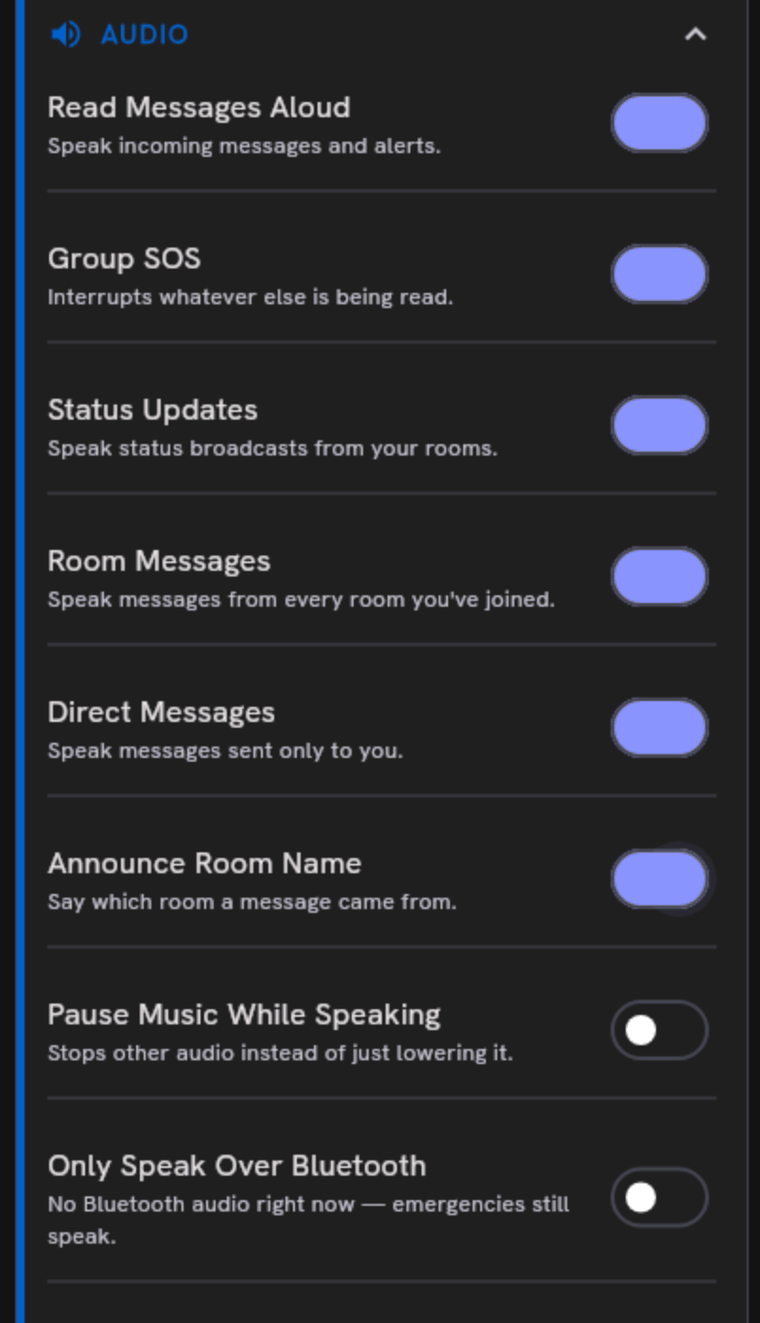
Settings → Audio → Read Messages Aloud. Underneath it, choose what is worth interrupting you for:
- Group SOS — interrupts whatever else is being read. This one is worth leaving on.
- Room messages and Direct messages, separately.
- Status updates — the short canned broadcasts from your rooms.
- Announce room name — says which room a message came from before reading it. Useful in two rooms, noisy in five.
- Pause music while speaking — ducks whatever else is playing.
- Only speak over Bluetooth — stays quiet on the phone’s loudspeaker and only talks when a headset is connected. Emergencies override it: a missed Group SOS is worse than one announced out loud.
Speaking voice and speech rate are in the same card. They also apply to the read-back before a dictated message goes out.
Received messages are read aloud but never written to the diagnostic log. Only text you dictated is.
Dictating
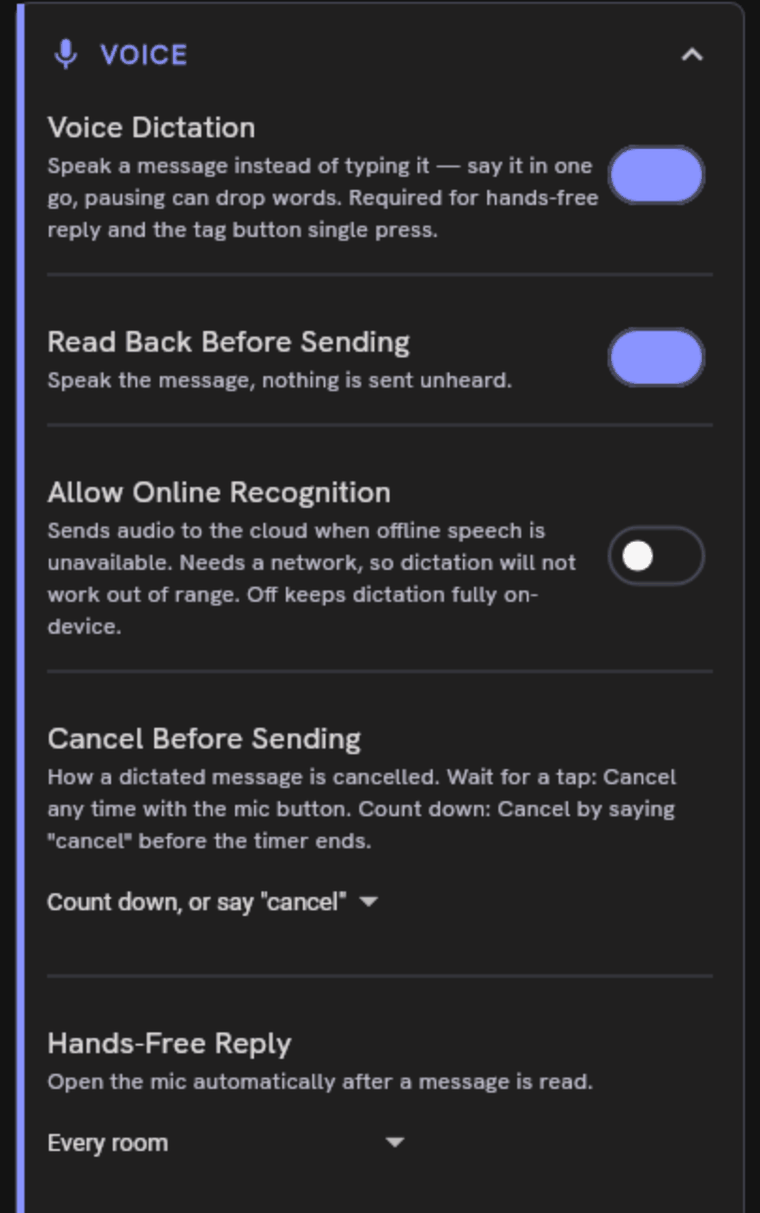
Settings → Voice → Voice Dictation is the master switch for every way of talking to the app — the microphone in the compose row, the reply window, and the tag button.
In a room, tap the microphone next to the text field, speak, and tap it again to stop. It is tap-to-start and tap-to-stop rather than press-and-hold, because holding conflicts with text selection and is awkward with gloves.
Before it sends
Read back before sending speaks the transcript back to you, and then Cancel before sending decides what happens next:
- Count down, or say “cancel” — the app reads it back, counts down, and sends unless it hears you cancel. You can also cancel by pressing the tag button or tapping the screen.
- Wait for a tap — shows the transcript and waits. Fastest when the phone is already in your hand.
The countdown runs alongside the listen rather than waiting for it, and that is deliberate. You already pressed the button, so sending is what you asked for; cancelling is the exception. Anything that goes wrong — silence, a misheard word, a recogniser that fails to start — resolves to “no cancel heard” and the message goes.
The earlier design waited to hear the word “send”, and it failed the other way: a flaky recogniser quietly swallowed messages people believed they had sent, on a medium with no delivery receipt. Losing a message you wanted is recoverable by saying it again. Believing you sent one you did not is not.
On-device or not
Allow online recognition means genuinely different things per platform.
On Android, leave it off and dictation runs entirely on the phone — which is what you want out of range anyway. Turn it on and audio goes to the platform speech service when the offline recogniser is unavailable.
On iOS the system chooses, and uses the on-device recogniser whenever there is no network.
Dictation availability in the same card tells you what is actually installed and ready, rather than what should be.
The reply window
Hands-free reply opens the microphone automatically just after a message is read to you, so you can answer without touching anything. Choose how much of your traffic gets one:
- Off
- Direct messages only
- Direct messages + the room you have open
- Every room — the most hands-free, and on a busy mesh the microphone will be opening constantly.
The tag button
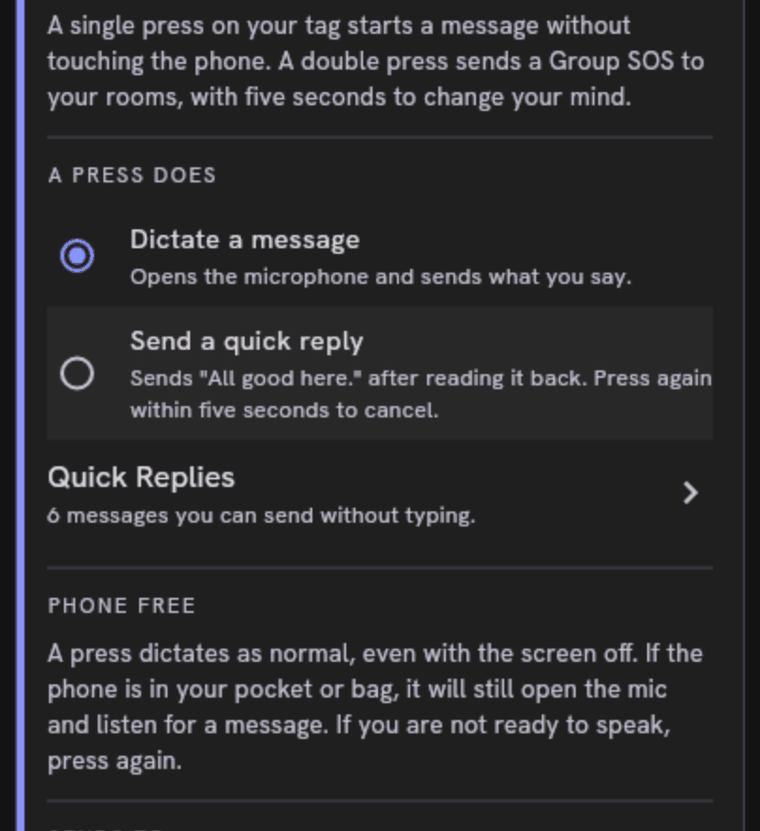
At the bottom of the Voice card. A single press starts a message without touching the phone; it can do one of two things.
- Dictate a message — opens the microphone and sends what you say. The default, where the microphone is legal.
- Send a quick reply — sends the first message in your quick-reply list after reading it back, with five seconds to press again and cancel. Never opens the microphone.
Sends to decides where it goes when you have not said: the most recent conversation, or always one room that you pick once and leave alone. It will never fall back to the primary channel — with nothing to send to, it says so rather than broadcasting to strangers.
With the phone in a pocket
This is the part you cannot discover by pressing the button, because it only differs when you cannot see the screen.
On Android, a press opens the microphone with the screen off and the phone away. It works as you would expect.
On iPhone and iPad, the system refuses to let any app start recording from the background, and no setting changes that. A press there sends your first quick reply instead, whatever the setting above says — it is the only thing the OS permits. Press again within five seconds to stop it.
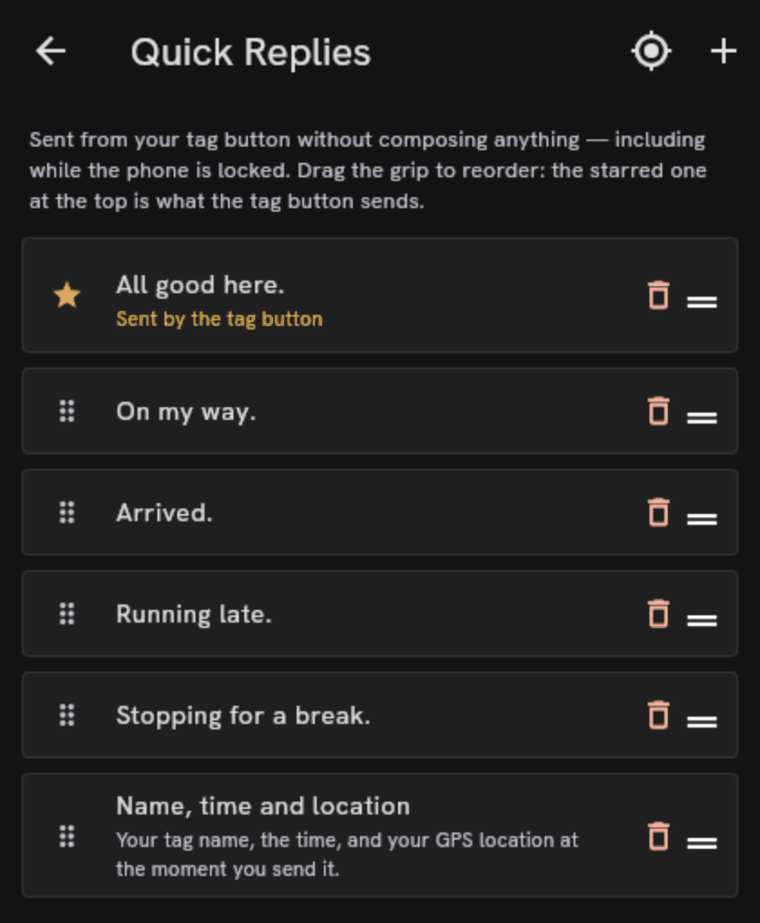
One quick reply can be a status report instead of fixed text: it sends your tag name, the time, and your GPS position at the moment you press.
Siri, on iPhone and iPad
To actually dictate with the phone away, ask Siri:
“Hey Siri, broadcast with TrailMesh7”
Siri takes the message and hands it to the app, which sends it over your tag’s radio. It works from a locked screen. “Send a broadcast with TrailMesh7”, “Radio someone with TrailMesh7” and “New broadcast on TrailMesh7” all work too.
The phrases avoid the word “message” on purpose. Messages claims that word from Siri and would stop to ask which app you meant — which costs the tap the whole feature exists to avoid. “Send a message with TrailMesh7” still works; it just asks first.
Headsets
Speech comes out over whatever the current audio route is, including a Bluetooth headset. Only speak over Bluetooth keeps it off the loudspeaker entirely.
Dictation uses the phone’s own microphone, not the headset’s, and that is on purpose. A headset microphone means putting Bluetooth into its two-way call mode, which does two bad things at once: it drops audio to telephone quality, and it squeezes the same radio your phone is using to talk to the tag. Speaking into the phone costs you nothing and keeps the link to your tag steady.
When the voice side misbehaves
Settings → Support → Voice diagnostics → Open diagnostics shows what the speech engine is actually doing, with copy and share buttons for the log. That is the log to send if you are reporting something about dictation or read-aloud — it is a voice log specifically, not a general app log.
It records text you dictated, so it may contain your own messages. It does not contain messages you received. Read it before you send it if that matters to you.