 TrailMesh7
User guide
Setting up a tag gets the hardware working. This is the other half: what the app does once it is, and how to drive it with cold hands.
If you have a tag paired and a room to talk in, skip to whichever part you need. If you have neither, start with the first fifteen minutes.
The guide
Rooms and messages
Creating a room, inviting people, direct messages, what "not delivered" means, and why removing someone rotates the key.
Hands-free
The tag button, dictation, messages read aloud, the reply window, Siri, and Bluetooth headsets.
Map and positions
Who appears on the map and when, downloading an area before you go, and the compass that works with no signal.
Group SOS
Sending one, cancelling one, what happens at the other end — and the thing it deliberately is not.
Backups and housekeeping
Accounts, tag backups, firmware updates, battery warnings, blocking a tag, and tidying the node list.
Trackers
Turning a spare tag into an unattended beacon, adding it to a room, and converting it back.
Five things worth knowing first
There is no unsend. A message that reaches the radio is gone. The app is built around that — it would rather refuse to send than send the wrong thing quietly, so a refusal with a reason is usually the app doing its job.
Room messages have no delivery receipt. A broadcast to a room goes out and nobody confirms it. Direct messages, room invites and rotated keys are acknowledged, and those are the ones that can show Not delivered under them when the radio gives up. Silence on a room message means nothing either way.
The room keys live on your phone, not on the tag. Lose the tag and your group’s messages are still private. Lose the phone with no backup and the keys are gone with it — someone else in the room can invite you back in.
One phone talks to one tag. Anything that needs a different tag — setting up a tracker, restoring a backup onto a spare — borrows the radio for a minute and hands it back.
The primary channel is not private. It appears in your room list marked NOT PRIVATE — anyone in range, because it is plain Meshtastic LongFast and every radio nearby can read it. The app will never quietly fall back to it: with no room set up it refuses to send instead.
The first fifteen minutes
- Connect the tag. TM7 Tag → Device Discovery. Bluetooth on a phone, USB in a browser on a computer. If it will not pair.
- Set the region, in Settings → LoRa Protocol Configuration, if setup did not already. Until it is set the tag transmits nothing at all, and the app puts a red banner across the top saying so.
- Name the tag, on the TM7 Tag screen. This is how you appear in everyone else’s list.
- Make a room. Chat → + → name it. You are the owner.
- Invite people. Tap the members icon on the room’s row. Show the QR code, copy the link, or send invites over the mesh by direct message.
- Send something. If it arrives at the other phone, the whole chain works.
- Look at the Map. Your own position appears first; other people appear as their tags report.
- Set up the tag button, at the bottom of Settings → Voice. One press either opens the microphone or fires your first quick reply — decide which you want before you are wearing gloves.
- Download the map area you will be in, in Settings → Offline Maps, while you still have a connection.
What is on each screen
| Tab | What it is for |
|---|---|
| Chat | Rooms, direct messages, and the list of both. Where you invite people. |
| Map | Everyone’s last reported position, offline maps, and the compass. |
| Group SOS | The red button in the middle of the bar — at the bottom of the rail on a tablet or in a browser. |
| TM7 Tag | Connecting, live telemetry, the node list, network topology, and the button and LED reference. |
| Settings | Region, audio and voice, tag button, offline maps, backups, account, support. |
Banners appear across the top when something needs you: no tag connected, the radio refusing to transmit, a tag low on battery, a firmware update available, and an active Group SOS. Each one is tappable and goes to the screen that fixes it.
The tag in your hand
The tag does five things without you looking at it. Presses are on the front button.
| Gesture | What happens |
|---|---|
| Single press | Starts a hands-free message on your phone — dictation, or your first quick reply. More. |
| Double press | Raises a Group SOS after a five-second warning. Double press again to cancel. |
| Triple press | Turns the tag’s own GPS receiver on or off. |
| Quadruple press | Mutes and unmutes the tag’s notifications. |
| Long press, 5 seconds | Powers the tag down, with stair-step tones on the way. |
The back button is a hard reset: one press reboots the tag. That is also the answer to “introduce this tag to the others” — a tag announces itself when it boots.
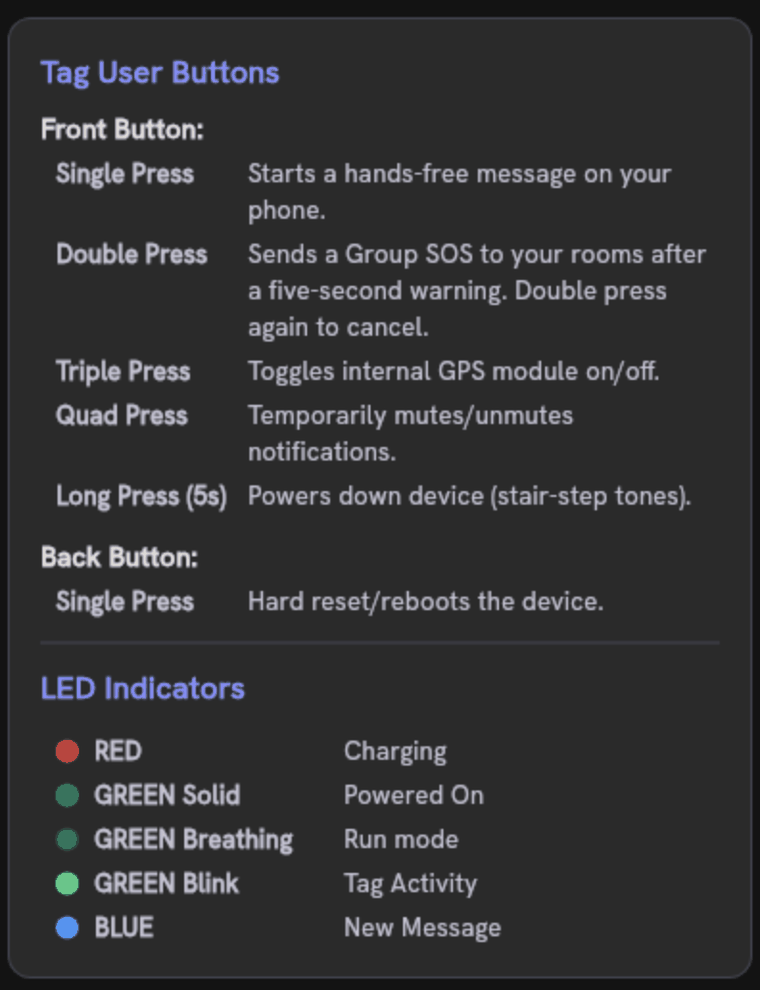
| LED | Meaning |
|---|---|
| Red | Charging |
| Green, solid | Powered on |
| Green, breathing | Running normally |
| Green, blinking | Tag activity |
| Blue | New message |
Something here not match what you see? Tell us — include the code printed on the tag.