 TrailMesh7
Backups and housekeeping
None of this is needed to send a message. All of it is what stops a bad day from becoming a worse one.
Signing in, and whether to
The app works fully signed out. Signing in adds three things and nothing else:
- A profile other people in your rooms see.
- Backups of a tag’s settings and rooms.
- Escrow of a tag’s identity key, so a lost tag’s rooms can be recovered onto replacement hardware.
Your messages are not part of it. There is no server for them to pass through. The privacy page lists exactly what each store holds.
Tag backup and restore
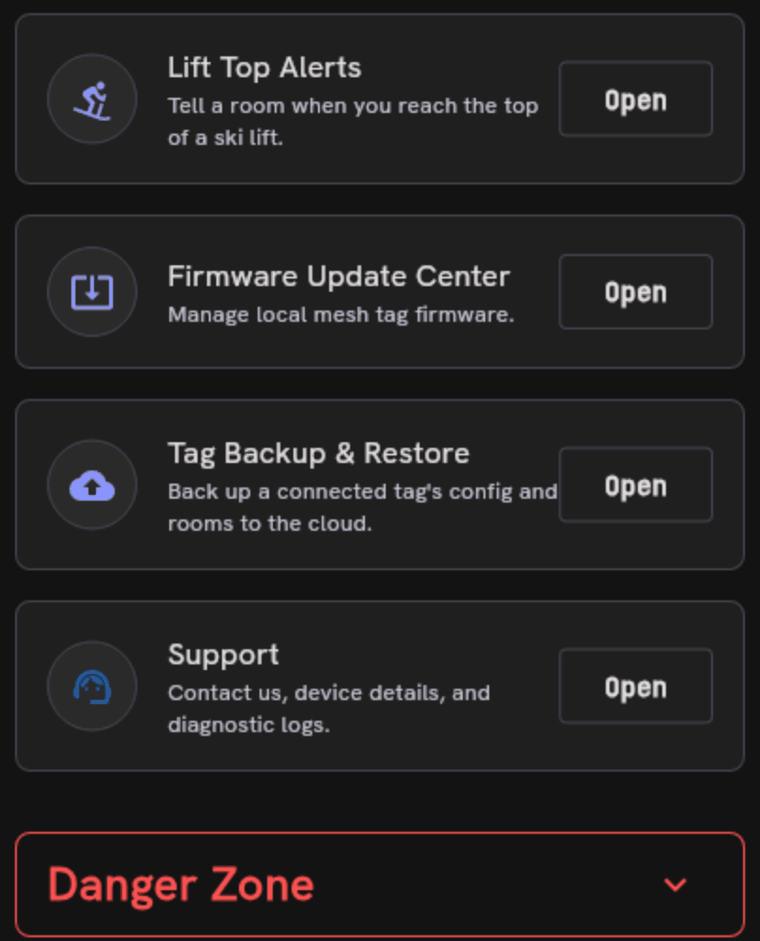
Settings → Tag Backup & Restore.
Backup now saves the connected tag. With auto-backup on, the tag is backed up automatically whenever its config or rooms change, as long as you are signed in. With it off, nothing is saved until you press the button.
A restore puts back:
- The owner name
- The LoRa radio config
- Room membership and keys
It does not put back message history. Rooms come back and their conversations are empty — that is the design, not a half-failure. A backup restores access, not content.
Restoring overwrites what the tag has now and reboots it to apply, and it cannot be undone.
Backups are filed under the tag’s imprint, the code printed on the hardware, because that is the only identifier that survives a change of keys. More about the imprint.
Firmware updates
Settings → Firmware Update Center checks for new tag firmware, shows what the connected tag is running, and puts it into update mode. A banner appears at the top of the app when an update is available.
Once your tag is on TrailMesh7 firmware, updates go over Bluetooth. The first update from stock Meshtastic has to be done from a computer over USB — stock firmware reboots into a USB drive a phone cannot reach. Why.
The same screen tells you plainly whether the tag is running TrailMesh firmware or stock Meshtastic firmware. If you are ever unsure, look there.
Battery
The tag reports its battery level to the app, and a warning banner appears when it gets low — tappable, taking you to the TM7 Tag screen. Trackers get the same treatment, so a beacon draining in a rucksack tells you before it goes quiet.
Two other things the app will tell you about a tracker, because both are indistinguishable from “out of range” otherwise: one that has never reported, and one that reports no battery at all.
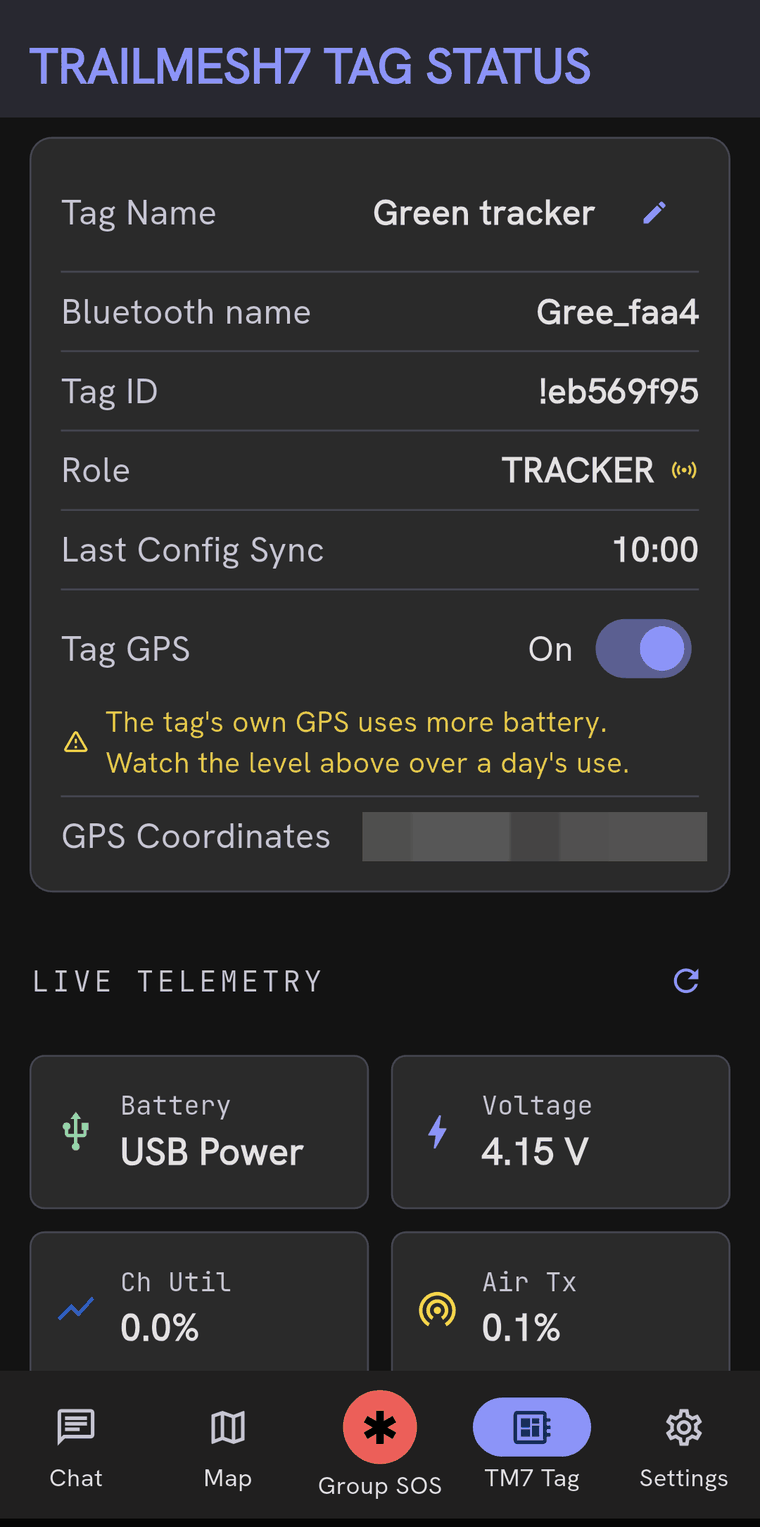
Battery history is kept per tag, so you can see a drain over a day’s use rather than guessing from one reading.
Keeping the node list honest
TM7 Tag → Tags and Trackers lists every tag this device knows about, with a search box and a show only trackers filter. Each entry’s ⋮ menu has:
- Forget this tag — your tag drops everything it knows about that one and
relearns it from the air. This is the fix for a tag stuck showing the wrong
details, including the
Tag <hex>with no name failure that will not clear on its own. - Block — stops that tag’s messages appearing on your phone. Local to you, nobody is told, and a Group SOS still gets through.
- Report — opens your mail app with the tag’s details filled in.
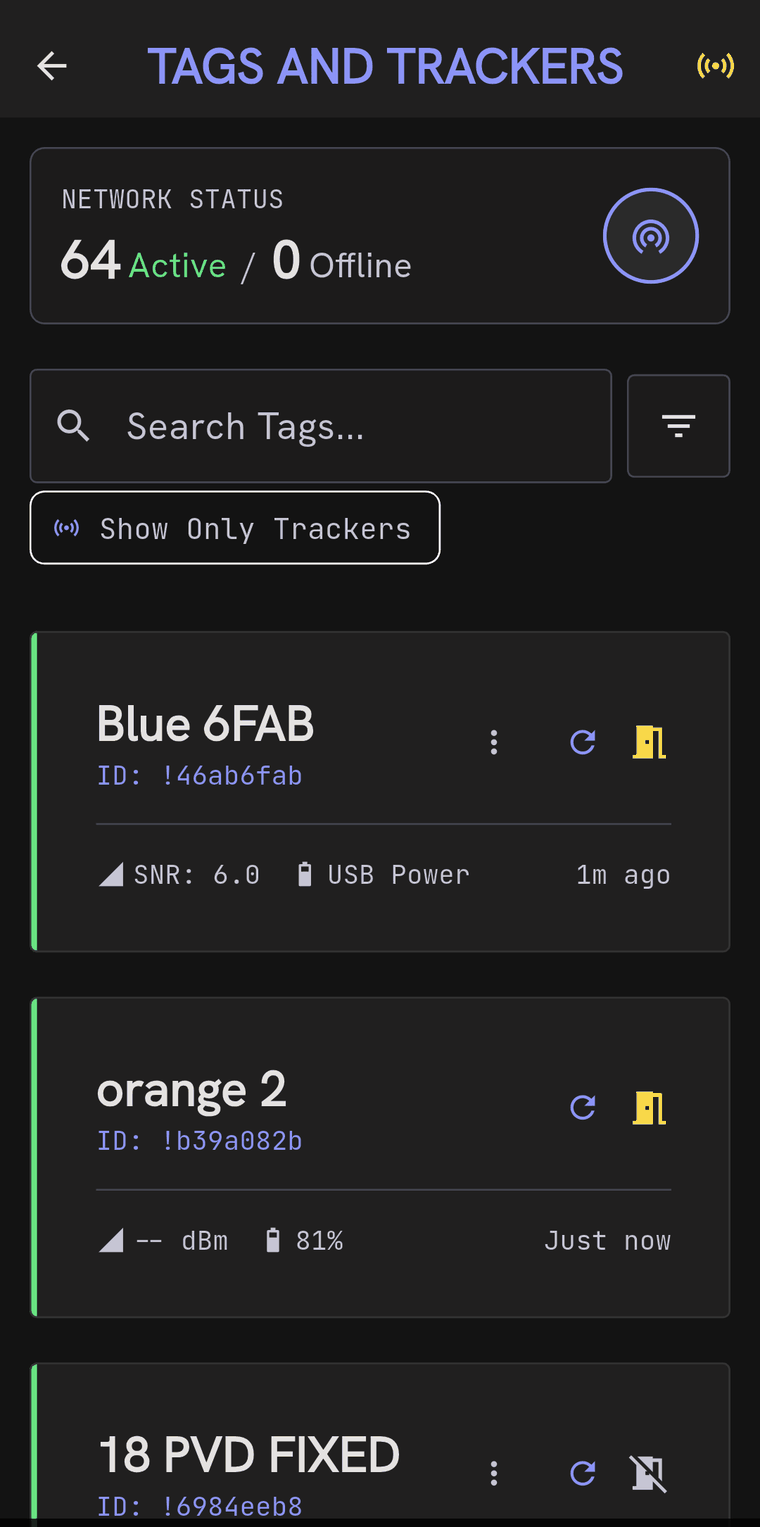
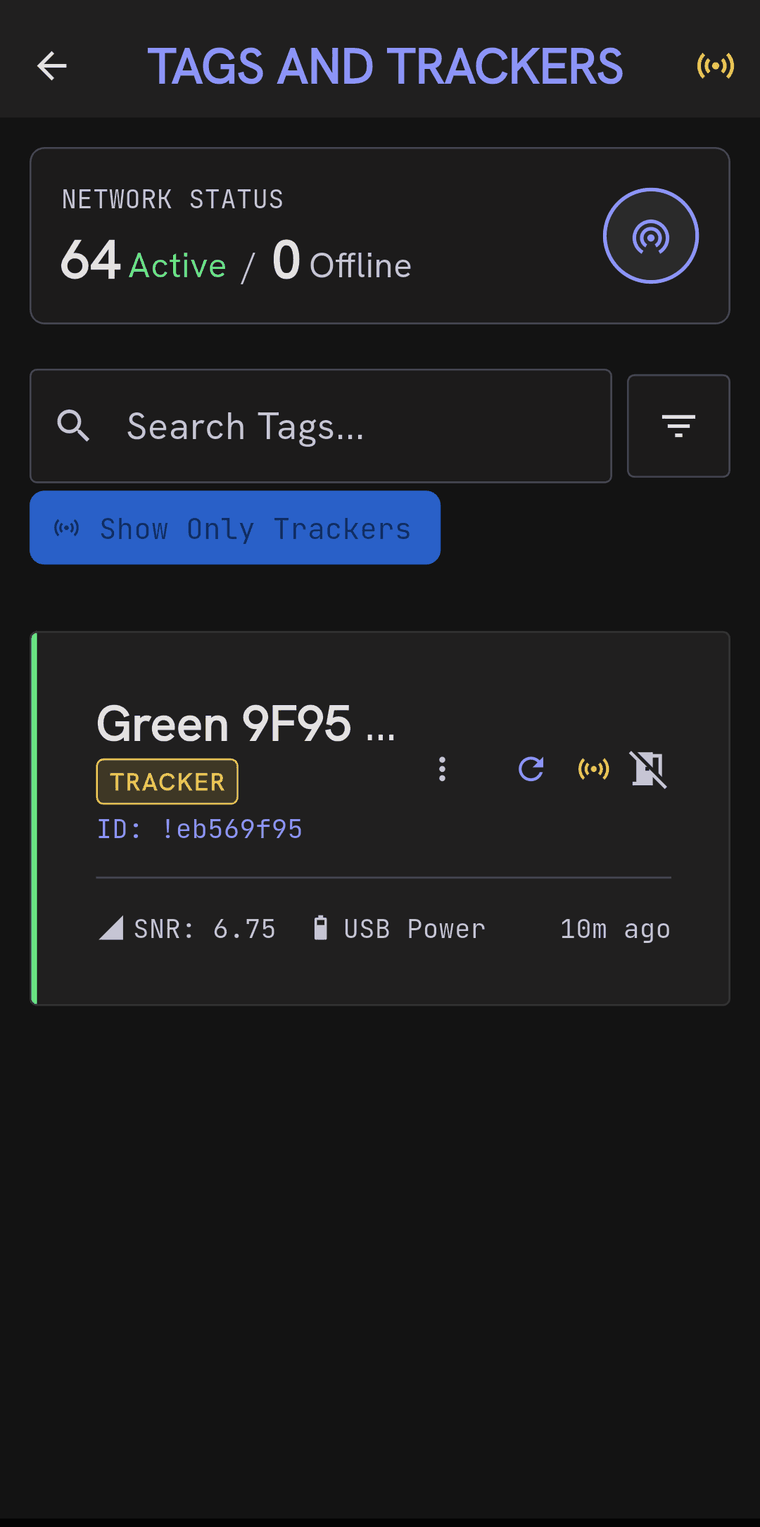
Settings → Danger Zone → Clean out old Tag nodes removes stale routing entries in bulk. Blocked tags, in the same section, is where you unblock.
TM7 Tag → Network Topology draws which tags can hear which. Useful for working out whether the tag on the hill is the one holding your group together.
Tag notifications
Settings → Tag Message Notification makes the tag itself signal a new message: flash its LED, sound its buzzer, or both, repeating for as long as you set in nag time. Useful when the phone is buried and the tag is clipped to a strap.
A quadruple press on the tag button mutes and unmutes this without going into settings.
Other things in Settings
- Bluetooth PIN — change the tag’s pairing PIN from the default
123456. - Device shutdown — power the connected tag down from the app.
- Terms and privacy — the same documents as on this site.
- Support — contact us with your device details filled in, and the voice diagnostics log.
Deleting your data
Settings → Danger Zone → Delete my data or account. It counts what is stored before you confirm, and it is explicit about what it does and does not touch:
- It removes everything TrailMesh7 keeps about you on its servers.
- Optionally, it removes the account as well. Leave that off and you can sign in again to the same account.
- It does not touch this phone. Your rooms, their keys, your messages and your tags all stay where they are.
Deleting turns cloud backup and key escrow off, so nothing is uploaded again afterwards.