 TrailMesh7
Map and positions
The Map tab draws everyone your tag has heard a position from, on a map that works with no connection — as long as you downloaded it first.
Who appears, and when
A tag appears on the map once it has reported a position. Until then it is in your node list but not on the map, which is normal and not a fault.
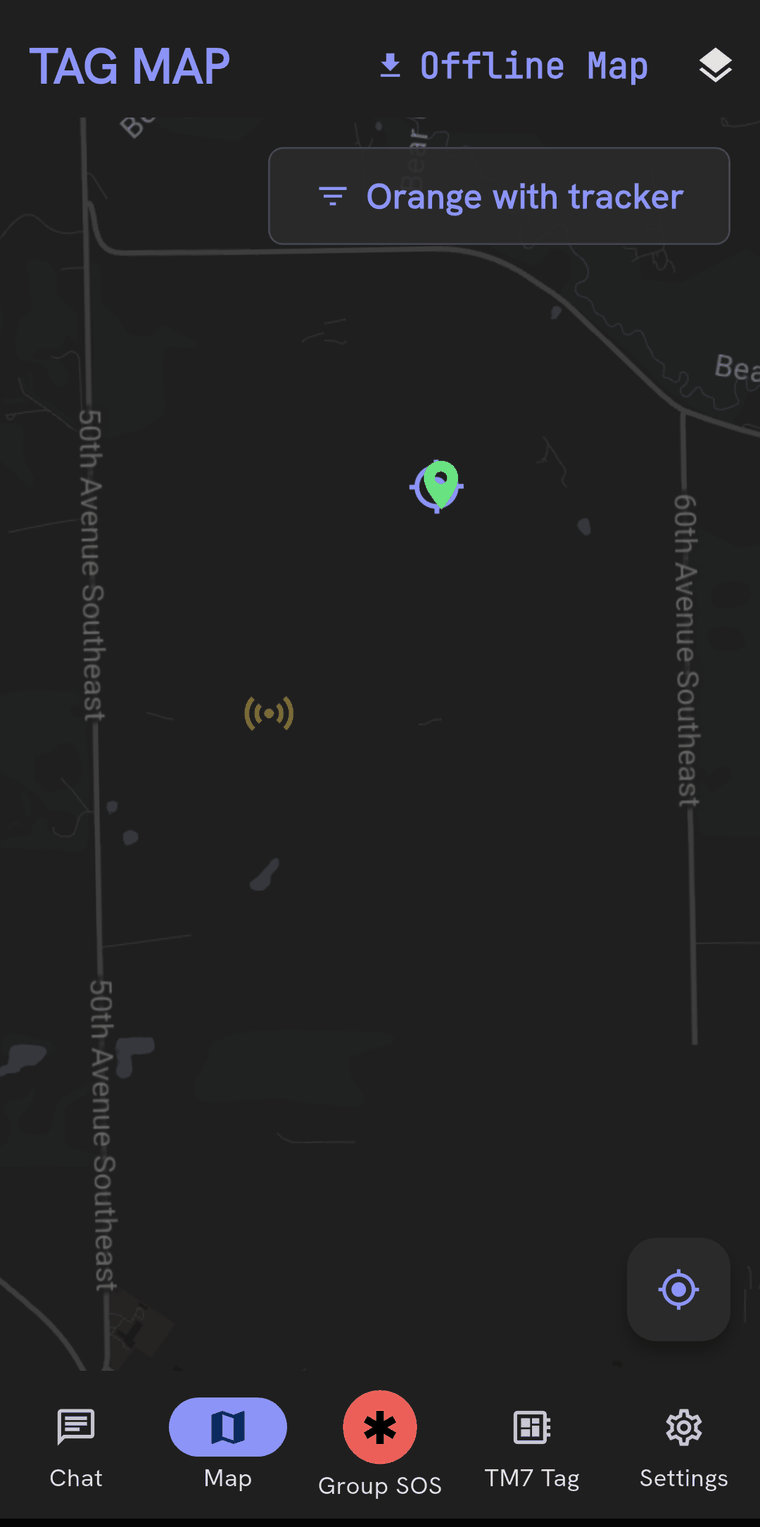
Positions are not sent continuously. Your phone puts one on the air when you have moved at least 15 metres, and never more often than once every 30 seconds. If you have not moved, it sends a heartbeat position roughly every 15 minutes so that nobody’s map ages you out.
That restraint is on purpose. Position is the least important traffic on the link and it will happily crowd out the most important — a phone that transmitted every GPS fix once filled a radio’s send queue completely while a room invite on the same link failed. A dropped position costs nothing, because the next one replaces it. A dropped message is gone.
The practical consequence: a stationary tag reports almost nothing and can look dead on the map. That is correct behaviour, not a problem to fix.
Where your own position comes from
By default, from your phone’s GPS. The tag’s own receiver stays off, because it is the single largest battery draw on the hardware and it would be reporting the same place your phone already knows.
You can turn the tag’s own receiver on from the TM7 Tag screen, or with a triple press on the tag button. Two reasons to:
- You would rather not grant the app location permission at all. With tag GPS on, your position comes over the mesh instead.
- The tag is going somewhere the phone is not.
Turning it on reboots the tag, so the connection drops for half a minute. Watch the tag’s battery over a day before relying on it.
Filtering the map
The selector at the top of the map decides whose positions are drawn:
- All room tags — everyone across every room you are in.
- A single room — just that group.
- Tag network — everything your tag has heard, including tags that are not in any of your rooms.
Tapping someone
Tapping a marker opens a card with their name, the tag ID, how long ago they were last heard, and whatever telemetry came with it. A tracker is labelled TRACKER along with the rooms it belongs to.
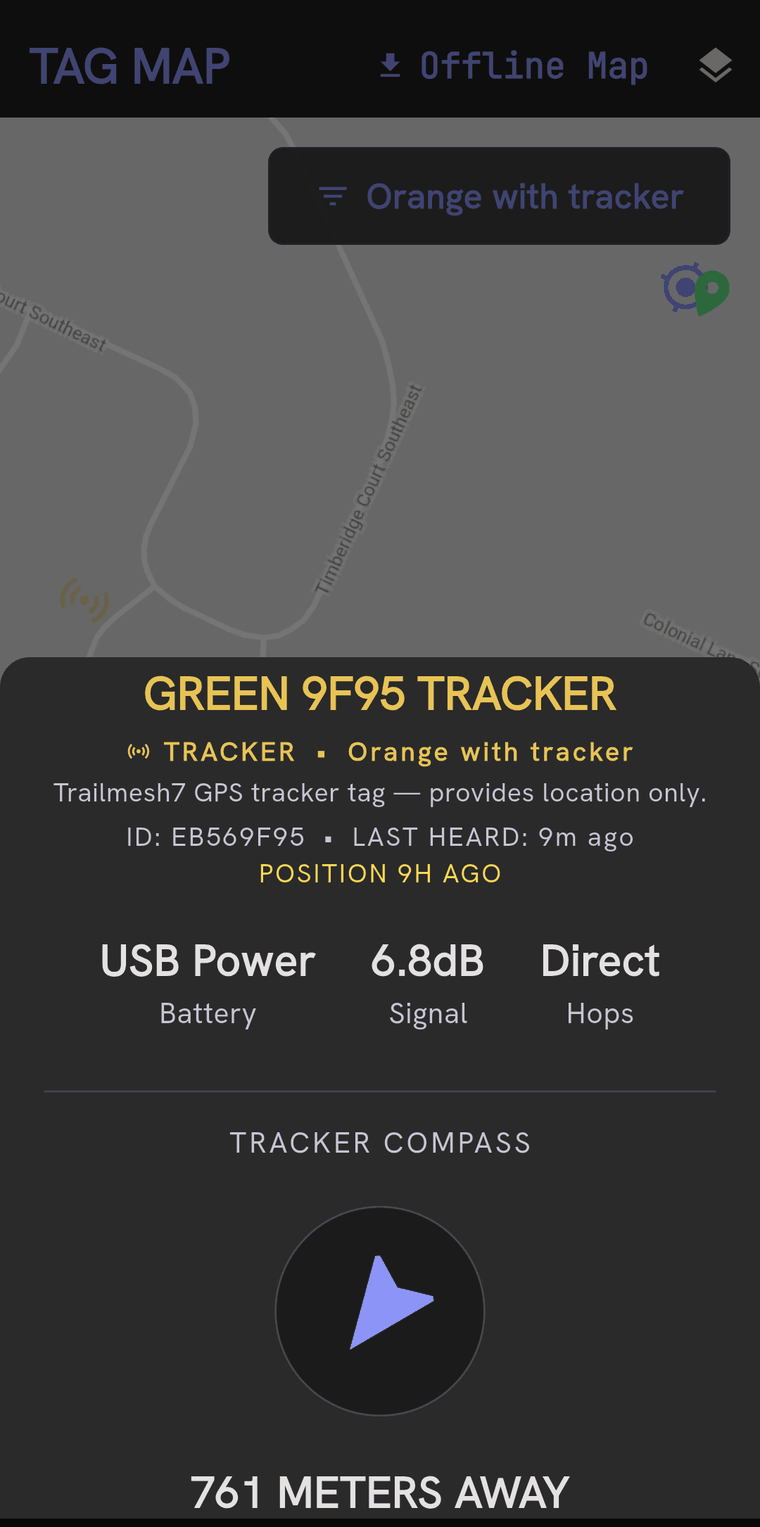
Open compass on that card gives you a full-screen direction finder: a bearing and a distance to their last known position, worked out from your own GPS fix and your phone’s compass sensor. No connection is involved at any point.
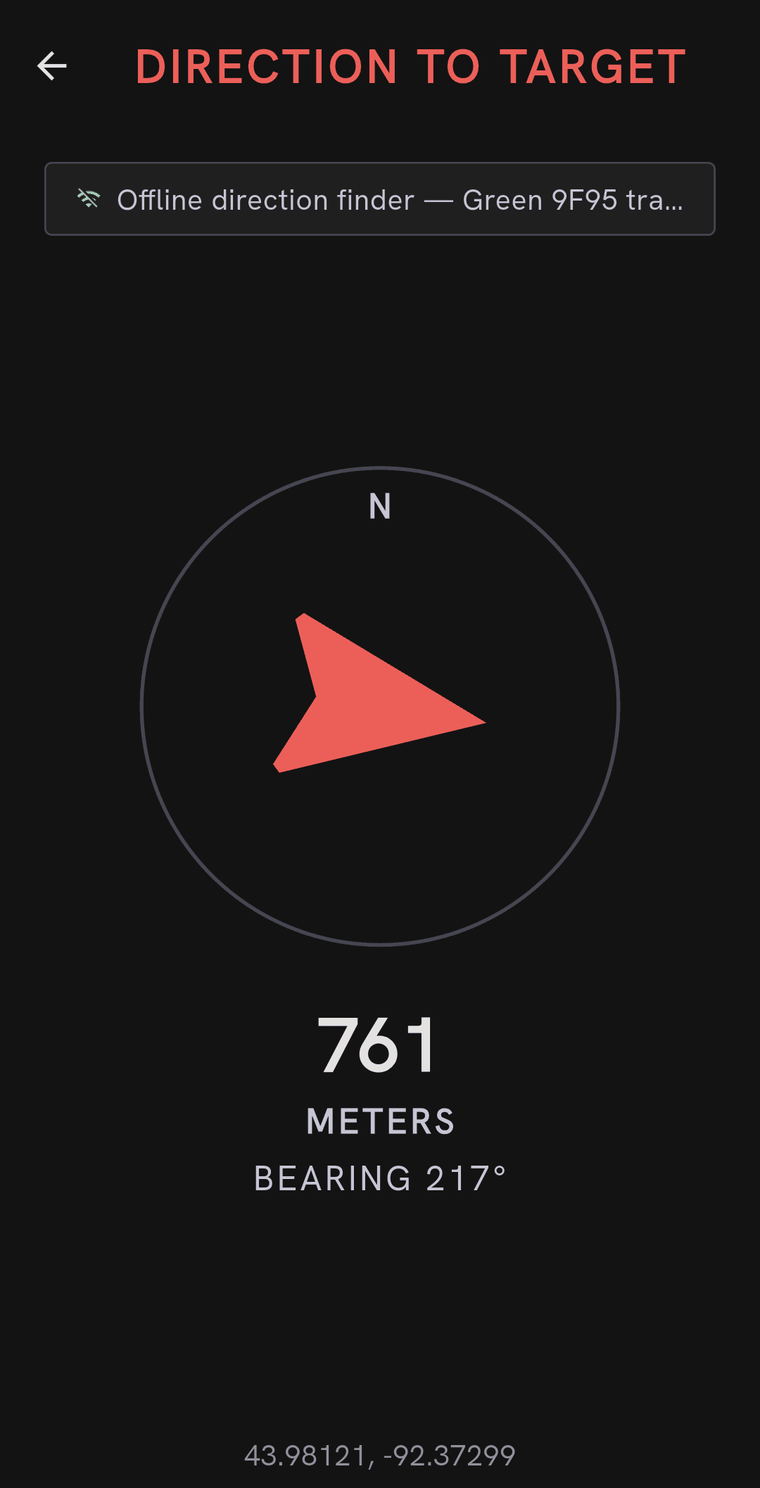
If the phone has no compass sensor it shows the raw bearing instead of a rotating dial — still usable, just hold the phone flat and point it north yourself. If your own GPS has no fix yet it says so rather than drawing a direction it cannot justify.
Map layers
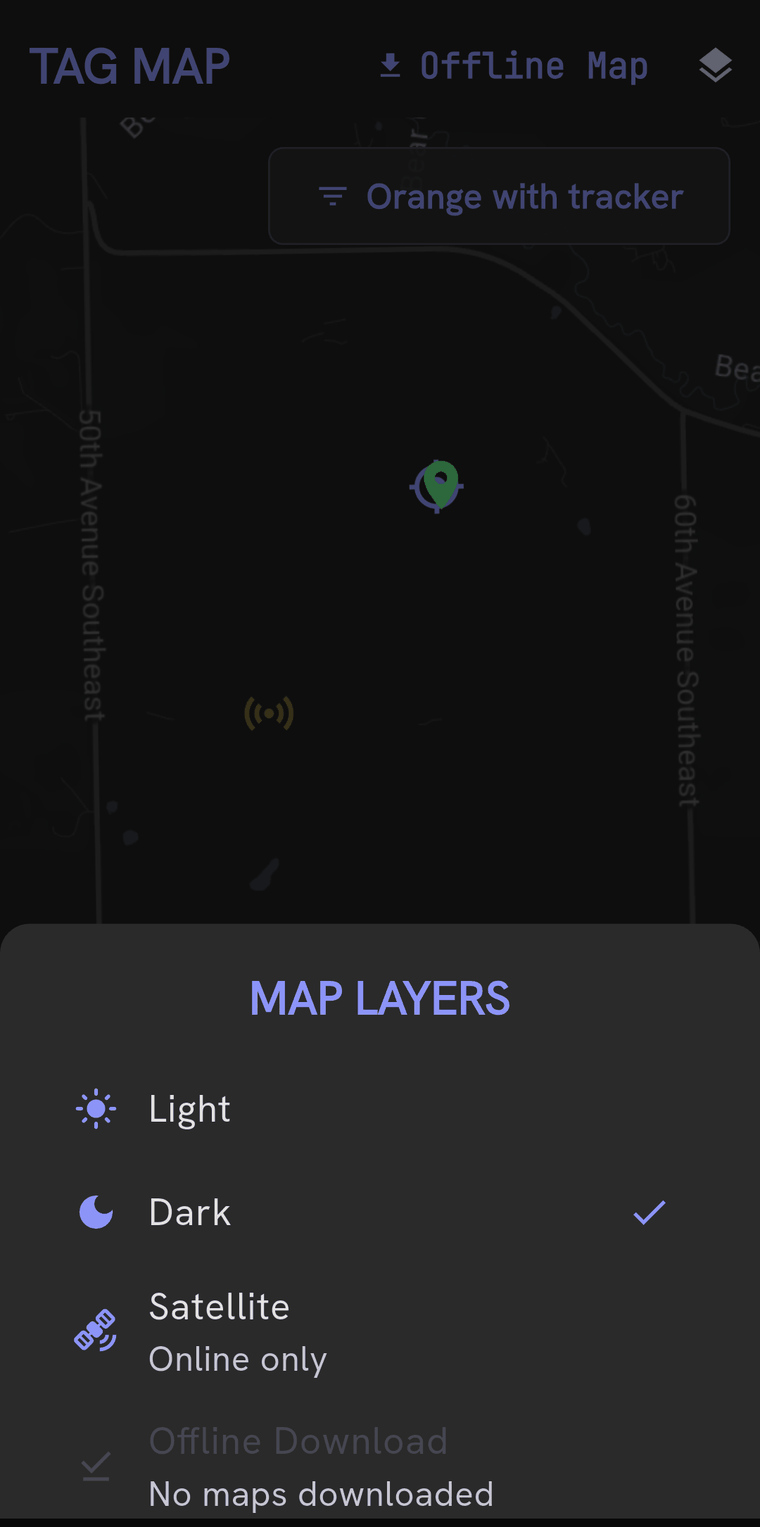
The layers button in the top right opens Map layers:
- Light and Dark — the streamed vector map, in two styles. Good detail, needs a connection.
- Satellite — imagery, online only. It says Offline — cannot connect when there is nothing to fetch from.
- Offline download — the regions you have saved, and the way to add one.
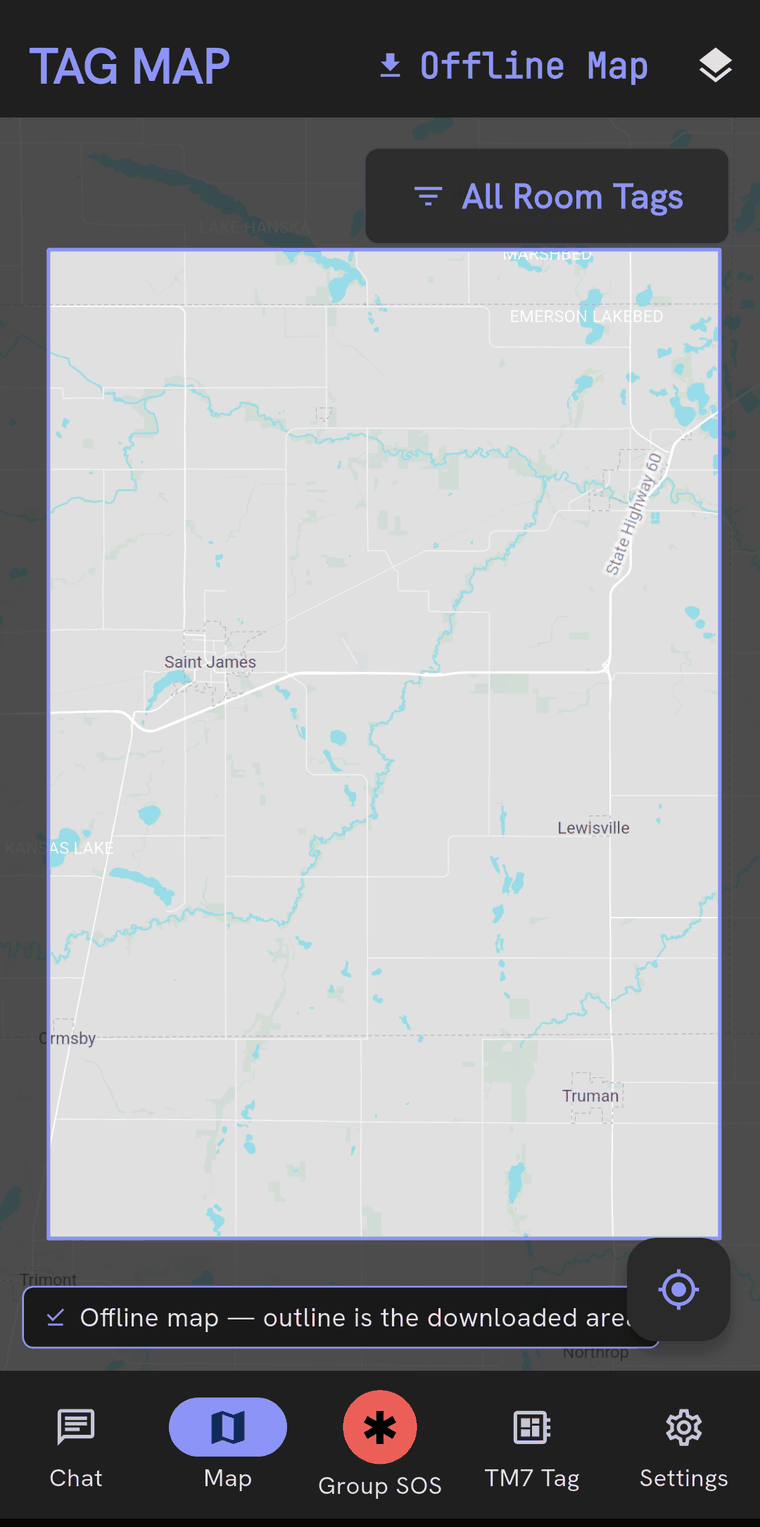
- Offline map — draw from those saved regions instead of the network. The outline on screen marks the downloaded area’s edges, so you can see where the detail stops.
Downloading an area before you go
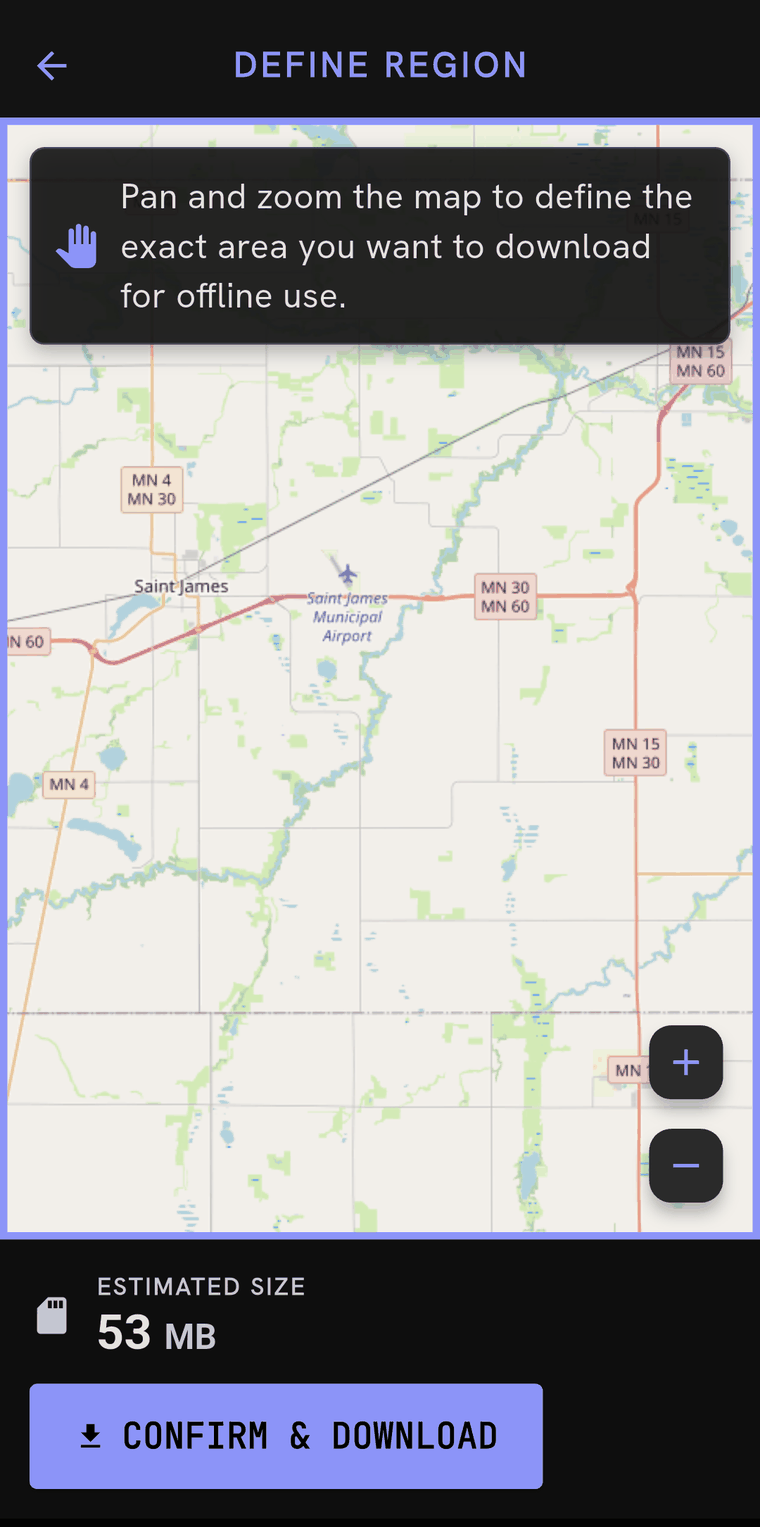
Settings → Offline Maps → Download new region, or Offline download in the map layers panel. Either way you then pan and zoom the map to frame exactly the area you want. The download runs in the background and the screen shows its progress and the storage it is using.
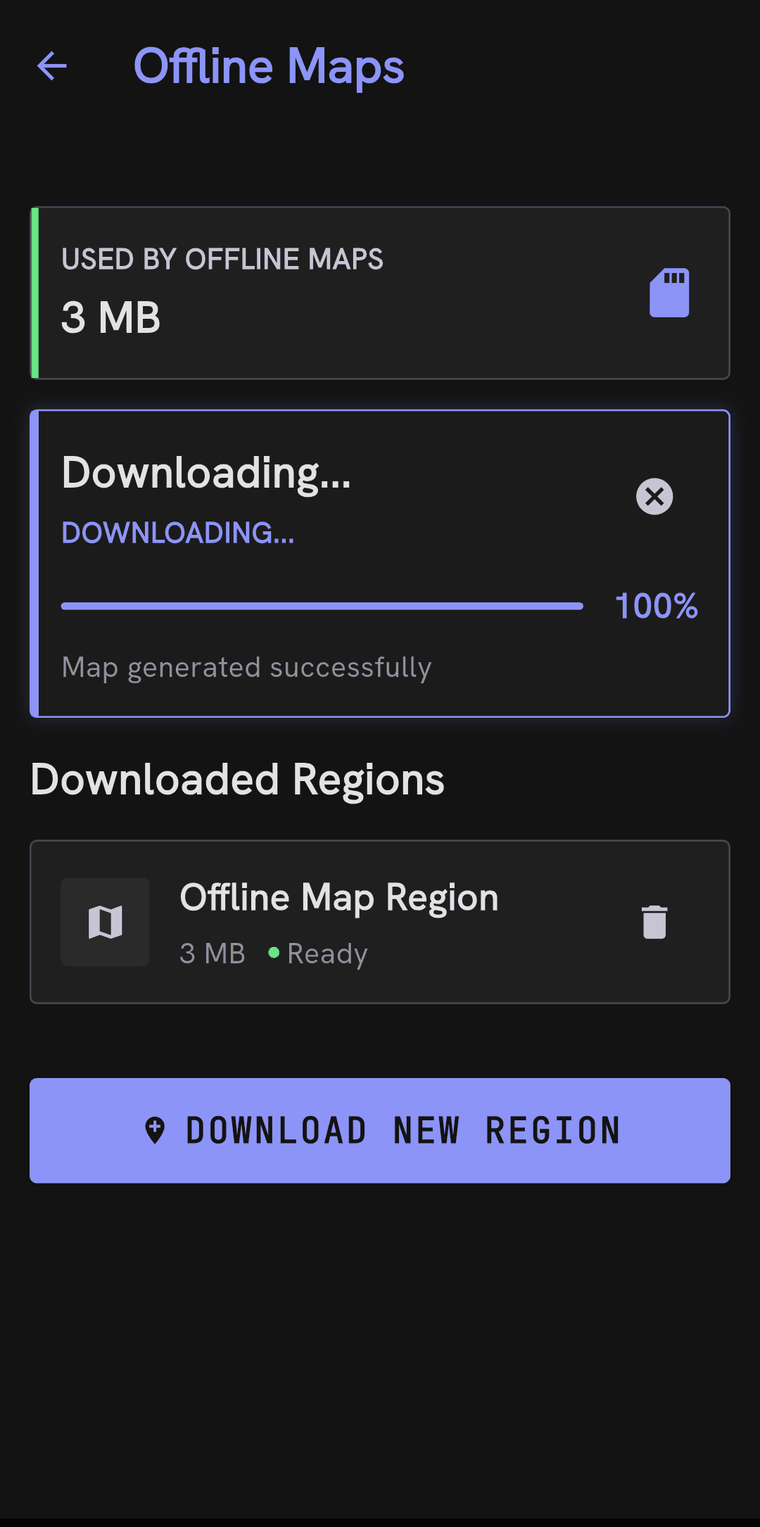
Downloaded regions are listed with their sizes and can be deleted individually.
Do this at home, on Wi-Fi. There is no useful way to do it from a car park with one bar, and no way at all from a valley floor.
Lift-top alerts
If you ski, Settings → Lift Top Alerts will watch your position for a lift ride and post a message to a room of your choosing when you reach the top — useful for regrouping without taking a glove off.
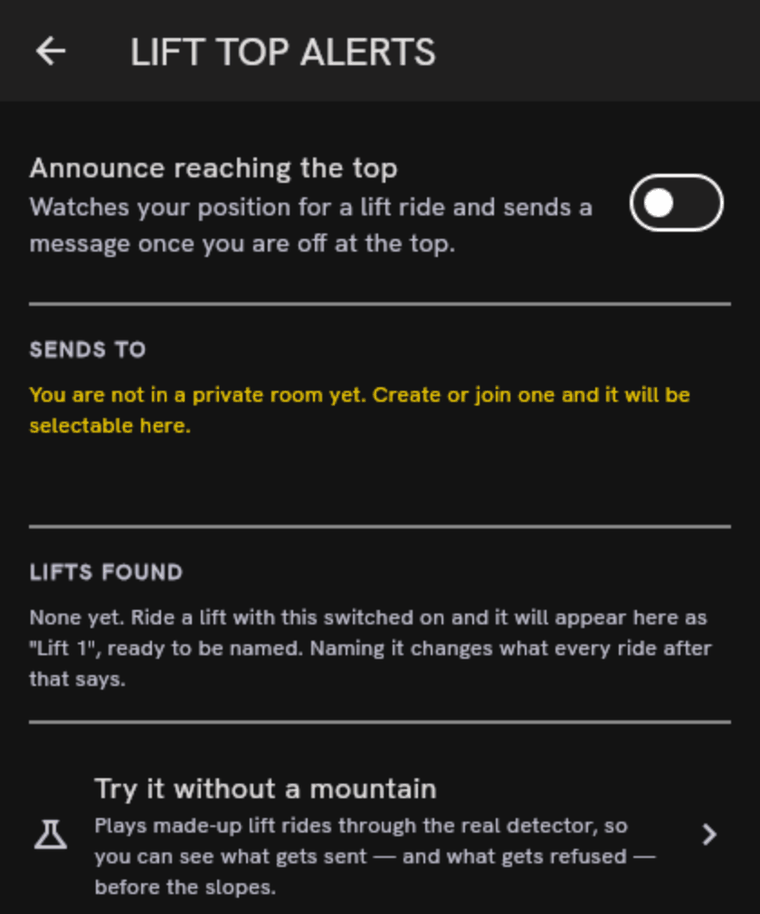
Ride a lift once with it on and the lift appears in a list, where you can name it. The name goes into the message word for word. Forgetting a lift means the next ride up it is found again as a new, unnamed one; the numbers are not reused.
It needs something watching your position while the phone is in a pocket. The ordinary “while using the app” location permission is enough — the app already holds a foreground service for your tag, and that is what keeps positions arriving. If you would rather not grant location, switch on the tag’s own GPS instead and the ride is recognised from what the tag reports over the mesh. Either way the detection happens on your phone; nothing about your route leaves it.
There is a simulator in the same screen that plays made-up lift rides through the real detector, so you can see what the feature does without a mountain.
Privacy, briefly
Your position goes to the tags in your rooms, over the radio. It does not go to us — there is no server-side location store for it to go to. Offline maps are rendered on the phone, so panning around does not tell anyone where you are looking. The privacy page has the full account.