 TrailMesh7
Setting up a tag
Seven steps, in order.
1. Start with TrailMesh7 firmware
The app requires it. Connect a tag running stock Meshtastic and TrailMesh7 shows you the update instead of opening — the tag button, the imprint your backups are filed under, and Bluetooth updates all depend on the fork, and on stock firmware each one fails without saying so. What it changes.
Kits will ship with it already on them, but they are not available yet. A stock tag needs one update from a computer over USB before the app will work with it; the app cannot do that first one over Bluetooth, because stock firmware reboots into a USB drive a phone cannot reach.
2. Pair the tag to your phone
Open TrailMesh7, scan, and pick the tag — then wait for the PIN prompt before accepting anything. Accepting the pairing before the tag has offered its PIN leaves the phone holding half a bond, and there is no way to clear that from inside the app.
The default PIN on a tag with no screen is 123456.
3. Set the region
Not optional, and the easiest thing on this page to miss. The firmware refuses every transmission while the region is unset. The tag will still receive, still pair, and still look perfectly healthy — while putting nothing on the air.
4. Give it an owner name
This is how the tag appears in other people’s lists. A tag with no name shows up as a hex code, which is hard to tell apart from a tag that is malfunctioning.
5. Introduce it — by rebooting it
With the other tags powered on and nearby, reboot the new tag. A tag announces its identity when it boots, and after that only every three hours by default. Without a reboot you may simply be waiting for the next one.
6. Confirm it appears by name
Check another tag’s node list. Listed by name means the identity propagated and
you are done. Listed as Tag <hex> with no name means packets are arriving but
the identity is being refused — see below.
7. Invite it to a room
From the room management sheet on a phone that is already in the room. Rooms are app-layer, so both phones need to be running TrailMesh7 for the invite to land.
That is the hardware done. What to do with it from here — rooms, the map, Group SOS and hands-free voice — is the user guide.
Setting up a tracker
A tracker is a spare tag set to report its position without anyone carrying a phone for it — left in a pack, on a sled, in a vehicle, or with a dog. It is an ordinary tag with a different role, so any tag can become one and go back again.
A room’s management sheet has two different things in its tracker area, and it is worth knowing which one you want:
- The chips under “Add a tracker that is already set up” put an existing tracker into this room. They do not touch the tag — it is already a tracker, and this is a room membership change.
- “Convert a tag into a new tracker” takes an ordinary tag and makes it one, then offers to add it to the room for you. This rewrites the tag’s settings and reboots it.
You can also start from Tags and Trackers → the tracker icon in the top bar, which runs the same conversion without a room attached — useful when you are preparing a tracker for somebody else to add to their own room.
The conversion lands on a screen with three steps: pick the tag, name it, watch it happen.
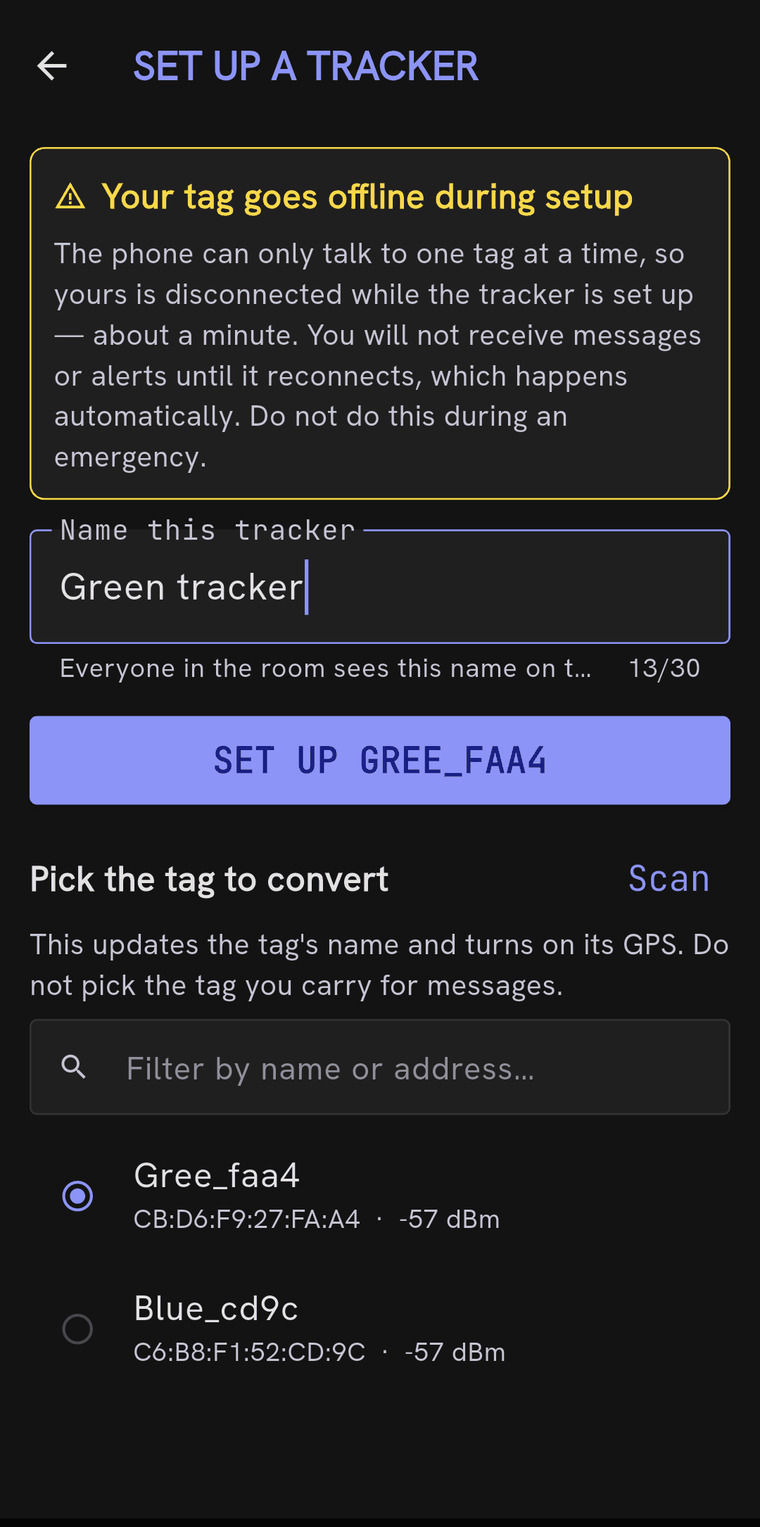
What the app writes
- The owner name you typed, so it is identifiable in everyone’s list.
- The tracker role, which is what marks it as an unattended beacon.
- GPS on, reporting when it moves, with a periodic fallback roughly every fifteen minutes.
That interval is chosen for airtime, not battery. Position traffic shares the channel with chat and Group SOS, and Meshtastic throttles transmissions as channel use rises — so a chatty tracker degrades delivery for everything on the mesh.
What to expect while it runs
Your phone can only talk to one tag at a time, so the app borrows the radio: it lets go of your own tag, connects to the one being set up, writes the settings, and reconnects you afterwards. Saving the settings reboots the tracker, which drops it off the mesh for about half a minute. Both are normal.
Afterwards the app reads the tag back and tells you whether the settings actually took. A write that succeeds over Bluetooth only means the tag received the bytes, not that it applied them — so if it reports something unconfirmed, run the setup again rather than assuming.
Running setup on a tag that is already a correct tracker writes nothing and does not reboot it. It is safe to re-run as a check.
Remember trackers are not room members
A tracker is deliberately kept out of the invite list and the direct-message picker — the firmware marks it unmessagable, so a room could never reach it. It belongs in the tracker section of the room sheet instead. A tag missing only from the invite list is usually a tag that was set up as a tracker.
Converting a tracker back to a normal tag
From a room, open the room’s management sheet and use the ⋮ menu beside the tracker → “Convert back to a normal tag.” The same action is in Tags and Trackers → the tracker’s ⋮ menu**, alongside “Check tracker settings”, which re-runs setup as a verification, and “Forget this tag”.
Converting back does three things:
- Sets the role back to client, so it can be messaged and invited to rooms again.
- Turns the tag’s own GPS off. A carried tag reports position from the phone’s fix instead, so the tag’s receiver is redundant.
- Leaves the tracker rosters of the rooms it appears in, so it stops being listed as a tracker.
Unlike setting one up, you can convert your own tag back. That is the recovery path if the wrong tag was made a tracker.
When a tag will not appear
Cheapest checks first.
It is in the Bluetooth list, so it works, right?
No. Seeing a tag over Bluetooth proves your phone is near it. It says nothing about whether the tags can hear each other — that is a completely different radio. A tag visible over Bluetooth and missing from the node list is normal and is not evidence of a fault.
Compare the config against a working tag
| Symptom | What it means |
|---|---|
| Region unset | Cannot transmit at all, silently |
| Transmit disabled | Transmission turned off |
| A different preset | The tags cannot hear each other, by design |
| A different primary channel key | Broadcasts do not decode; identity never lands |
Check the role
A tracker is excluded from the invite list on purpose. Rooms need a tag set to client.
Check the identity card
If a tag’s advertised public key does not match the one its private key produces, every broadcast it sends is discarded by every other tag — while direct messages, signal strength and the node list all look fine. The Tag Identity card in the app detects this and says so.
Send a direct message both ways
This is the decisive test, because direct messages and broadcasts take different paths through the radio.
- DMs work but the tag is still invisible — its broadcasts are being rejected. Check the identity card, then how the other tag lists it.
- DMs fail too — nothing is getting through at all.
Look at how the other tag lists it
Listed as Tag <hex> with no name is a specific failure, not a cosmetic one:
the receiving tag is refusing the identity and will not recover on its own.
Rebooting does not clear it. Use Tags and Trackers → forget on the tag that is
showing the bad entry, which clears it from that tag’s own memory, then reboot
the missing tag while the other is listening.
Physical things
- Reboot the missing tag while the other one is powered. The announcement is a boot-time event; if nothing is listening, the next one may be hours away.
- Move the tags a few metres apart. LoRa receivers can desensitise at very close range. Side by side on a desk is not the best case, it is one of the worst.
- Check the geometry. If A hears C and B hears C but A and B cannot hear each other, C is probably between them and the hill is doing its job.
Things that will not help
The “request node info” button. The reply is sent as a direct message, and the firmware will not accept an identity from one — so the reply cannot populate the entry even when it arrives. It is also rate-limited to once every twelve hours per sender, so it will often do nothing at all.
Toggling GPS. GPS affects position reporting, not discoverability. Note separately that with GPS on, position is broadcast on movement with a periodic fallback around fifteen minutes — so a stationary tag reports almost nothing and can look dead on the map. That is correct behaviour.
Still stuck? Get in touch — include the code printed on the tag,
R6…… or J6…… depending on how old it is.